In More, specify additional options such as sorting the results or limiting the number of displayed events.
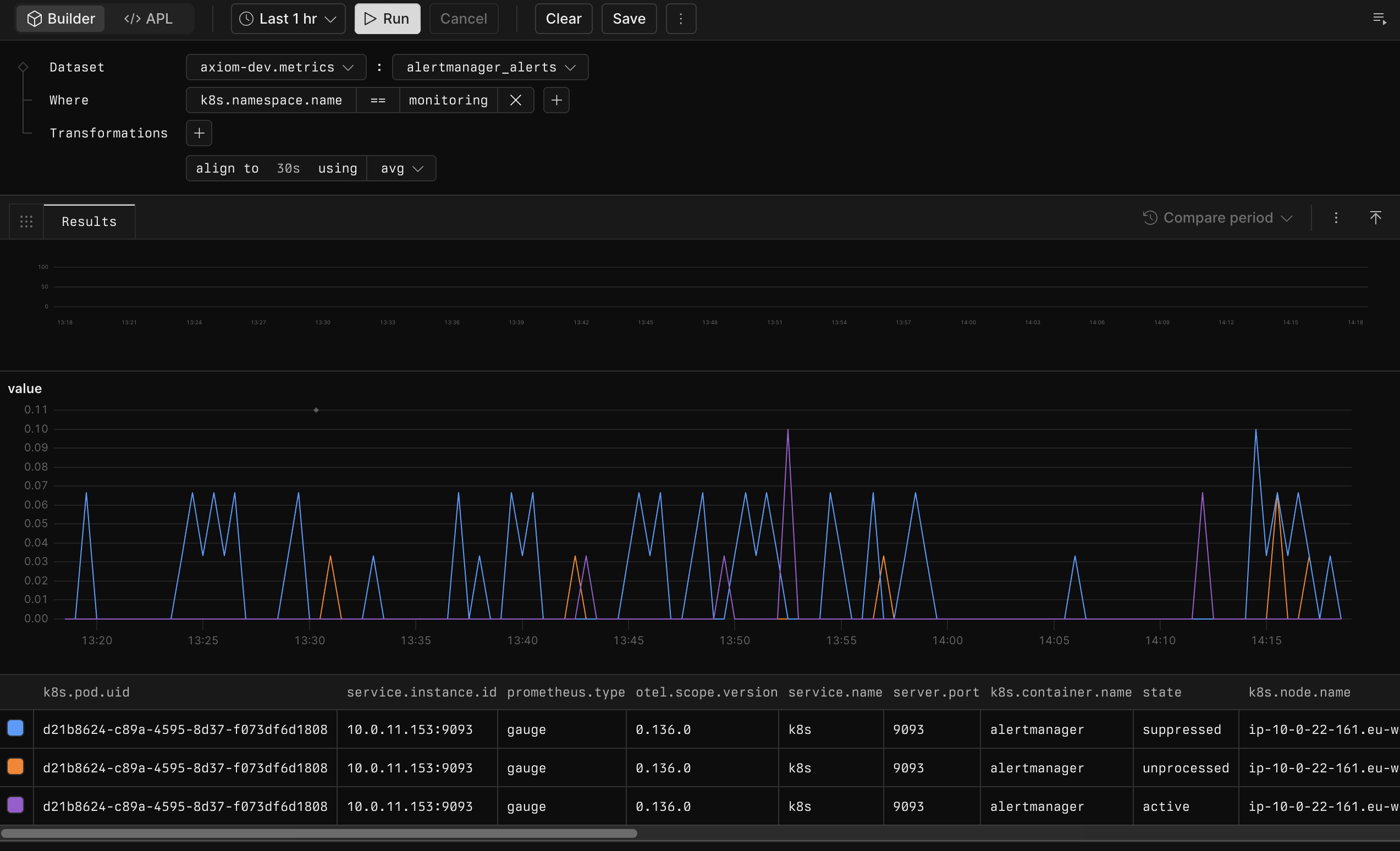
In Dataset, define the source of your query. Select an OTel metrics dataset, and then select the metric you want to query.The dataset and metric names are separated by a colon in the Builder interface. For example, axiom-dev.metrics:alertmanager_alerts.
In Where, add filters to narrow down the query results. Restrict the query to a set of series whose tag values match the conditions you specify.
While the query runs, the status bar gives you continuous updates about the number of rows examined, matched, and returned.See below for more information about each of these steps.
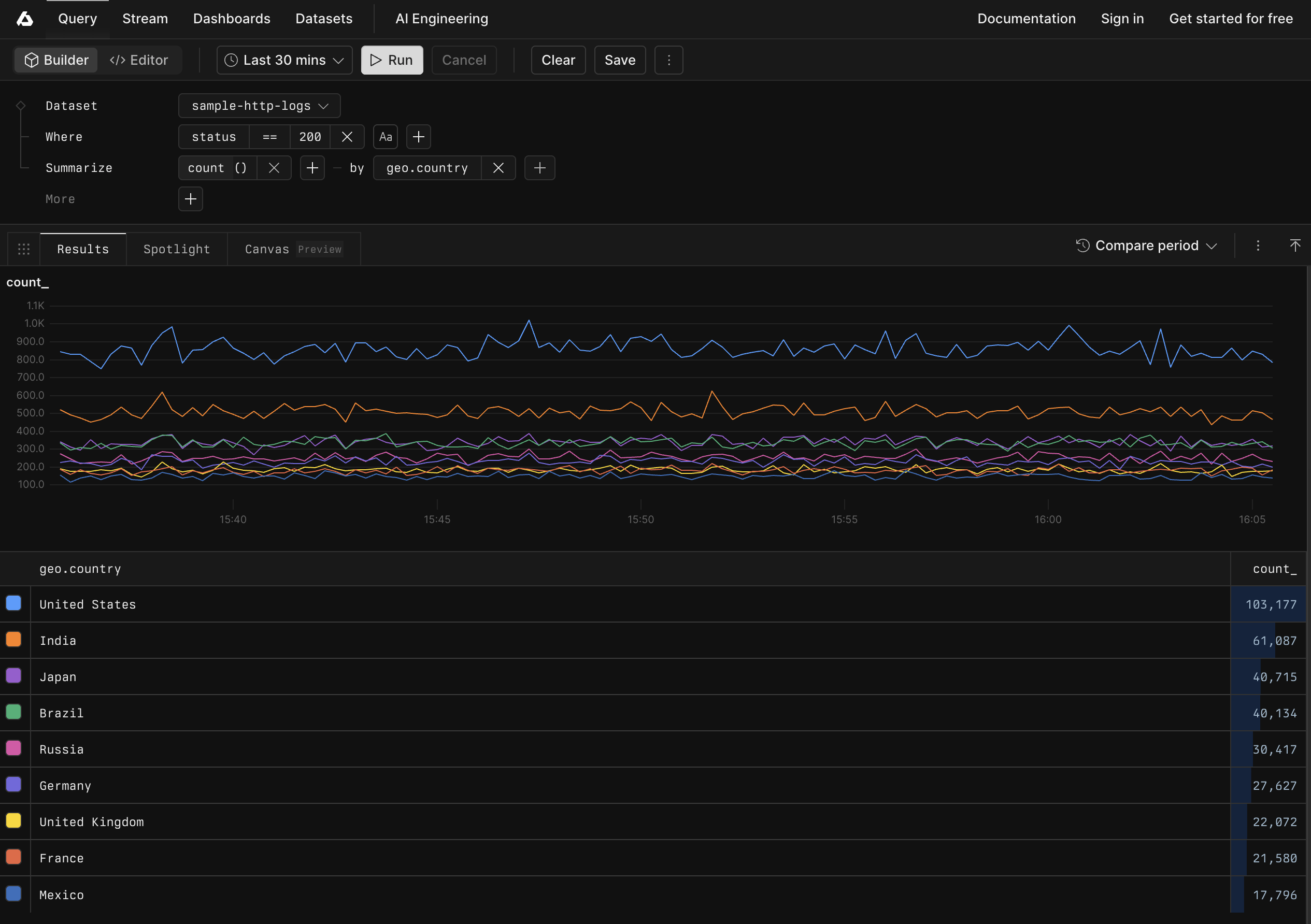
This example queries the sample-http-logs dataset to find all events where the HTTP status code is 200 and groups the results by county.
This example queries the axiom-dev.metrics dataset’s alertmanager_alerts metric one hour before the current time. It filters results to events where k8s.namespace.name is monitoring and aggregates events over 30-second time windows into their average value.
Use the Where section to filter the results to specific events. For example, to filter for events that originate in a specific geolocation like France.To add a filter:
Click + in the Where section.
Select the field where you want to filter for values. For example, geo.country.
Select the logical operator of the filter. These are different for each field type. For example, you can use starts-with for string fields and >= for number fields. In this example, select == for an exact match.
Specify the value for which you want to filter. In this example, enter France.
When you run the query, the results only show events matching the criteria you specified for the filter.Run in Playground
You can add multiple filters and combine them with AND/OR operators. For example, to filter for events that originate in France or Germany.To add and combine multiple filters:
Add a filter for France as explained in Add filters.
Add a filter for Germany as explained in Add filters.
Click and that appears between the two filters, and then select or.
The query results display events that originate in France or Germany.Run in Playground
You can add groups of filters using the New Group element.
Axiom supports AND/OR operators at the top level and one level deep.
Axiom provides powerful visualizations that display the output of aggregate functions across your dataset. The Summarize section provides you with several ways to visualize the query results. For example, the count visualization displays the number of events matching your query over time. Some visualizations require an argument such as a field or other parameters.Run in PlaygroundFor more information about visualizations, see Visualize data.
When visualizing data, segment data into specific groups to see more clearly how the data behaves. For example, to see how many events originate in each geolocation, select the count visualization and group by geo.country.Run in Playground
In the More section, specify the following additional options:
By default, Axiom automatically chooses the best ordering for the query results. To specify the sorting order manually, click Sort by, and then select the field according to which you want to sort the results.
To limit the number of events the query returns, click Limit, and then specify the maximum number of returned events.
Specify whether to display or hide open intervals.
Use align to aggregate over time windows. You can specify the time window and the aggregation function to apply.Available aggregation functions:
Function
Description
avg
Averages values in each interval.
count
Counts non-null values per interval.
max
Takes the maximum value per interval.
min
Takes the minimum value per interval.
prom::rate
PromQL-style rate calculation.
sum
Sums values in each interval.
last
Takes the last value in each interval.
For example, to calculate the average over 5-minute time windows, use align to 5m using avg. To count the data points in the last hour, use align to 1h using count.When metrics emit data at regular intervals but with different offsets across time series, align maps your data to a fixed set of time intervals. This makes it easier to visualize data from different sources on a single chart. If the alignment interval is shorter than the emission interval, some intervals can have null values. Select how to handle null values in the chart options.
Use group to combine series by tags. You can specify the tags to group by and the aggregation function to apply. If you don’t specify tags, Axiom aggregates all series into one group.Available aggregation functions:
Function
Description
avg
Averages values in each group.
count
Counts non-null values per group.
max
Takes the maximum value per group.
min
Takes the minimum value per group.
sum
Sums values in each group.
For example:
To calculate the number of series, use group using count.
To sum the values of all series, use group using sum.
To group data by the project and namespace tags using the sum aggregation, use group by project, namespace using sum.
Use bucket to aggregate over time and tag dimensions simultaneously.Available aggregation functions:
Function
Description
avg
Averages values in each group and time inverval.
count
Counts non-null values per group and time inverval.
max
Takes the maximum value per group and time inverval.
min
Takes the minimum value per group and time inverval.
sum
Sums values in each group and time inverval.
quantile
Computes the specified quantile per group and time inverval. Specify the quantile as a value between 0 and 1. For example, specifying 0.99 corresponds to the 99th percentile.
For example:
To calculate the average value per group and time interval, use bucket using histogram(avg).
To also count the number of data points per group and time interval, use bucket using histogram(count, avg).
To show the results of multiple aggregations in a single chart, use multiple functions.If you don’t specify tags with bucket, Axiom applies the specified aggregations to all tags.When the underlying metric is a histogram, Axiom computes bucket aggregations using the interpolate_cumulative_histogram and interpolate_delta_histogram functions depending on the temporality used. For quantile aggregations, this estimates the quantile using the underlying histogram data.
When you select the time range of a query, you specify the time interval where you want to look for events.To select the time range, choose one of the following options:
In the top left, click Time range.
Choose one of the following options:
Use the Quick range items to quickly select popular time ranges.
To the right of the Start date and End date fields, click Select date and time to select specific times.
Enter the specific time in the Start date and End date fields using natural language. For example, 1 hour ago or last Monday at 3pm. For more information on the supported natural language inputs, see the Sugar documentation. Don’t use the from and after keywords in your input.